
Livescribe
On powering up, your smartpen starts in the Home state.
The smartpen screen shows the WiFi connection status, time, and battery level.
At any time, you can return your smartpen to the Home state by tapping a Home button. This stops the current app and returns the smartpen to the Home screen. Use the Home button when you want to stop an app and start another.
Home buttons are printed in most Livescribe Dot Paper products.

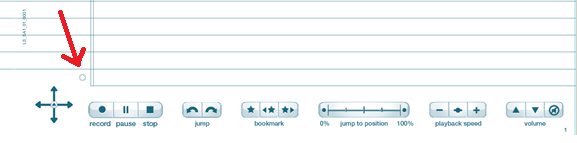
The current app stops, and the smartpen screen shows the Home state.